

How to Bulk Print Shipping Labels from eBay: Stop Doing It One at a Time
Bulk print shipping labels from eBay in seconds instead of minutes per order. A complete guide to eBay's built-in tools, CSV workflows, and full automation for high-volume sellers.
The ability to bulk print from eBay is one of the first things high-volume sellers look for — and one of the most frustrating limitations they hit when they try to use eBay's native tools. eBay does technically allow batch label printing, but the implementation has enough friction that most sellers still end up processing orders individually once volume gets serious.
This guide explains what eBay offers natively, where it breaks down, and how to build a proper bulk printing workflow that scales to hundreds of orders per day.
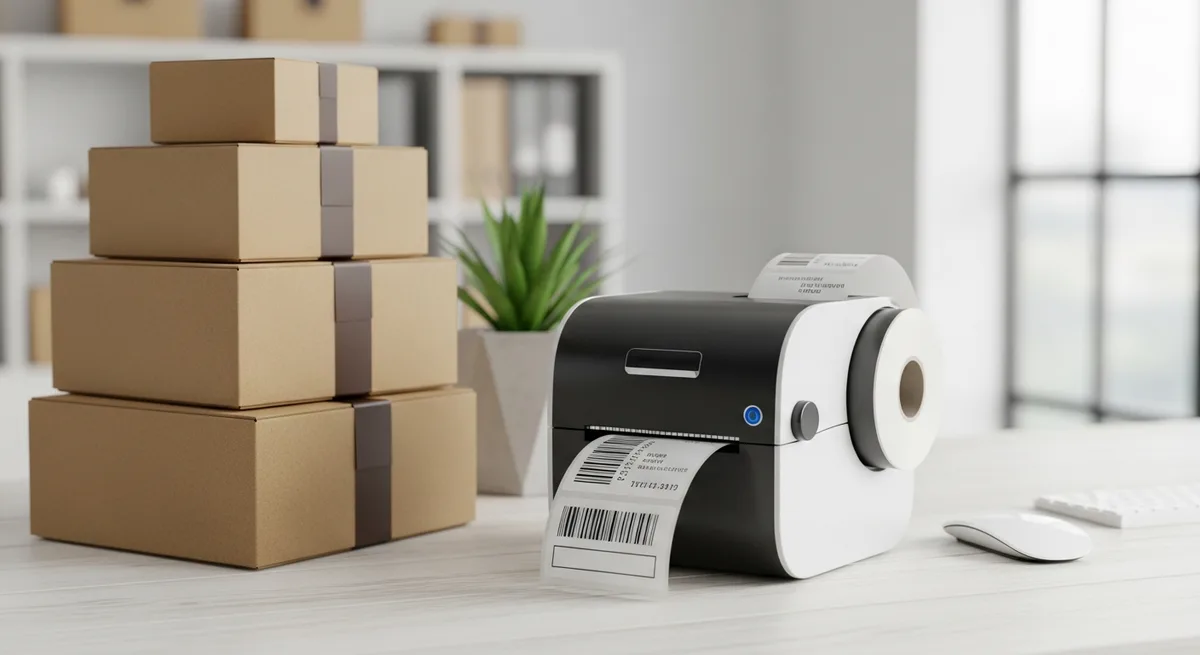 A dedicated thermal label printer is the backbone of a fast eBay bulk printing workflow — 3 seconds per label versus 15 on a desktop printer.
Why Bulk Printing Matters at Scale
If you are processing 10 orders a day, clicking through each one individually is annoying but survivable. At 50 orders it becomes your longest daily task. At 200 it is genuinely not viable — you will spend two hours per day just generating labels.
The maths are straightforward. At 90 seconds per label (finding the order, clicking through the label flow, confirming the service, printing), 100 orders takes 2.5 hours. Bulk printing that same batch takes under 5 minutes.
The difference is not just time. Manual processing introduces errors — wrong service selected, wrong address, weight not updated. Bulk printing from a well-configured system applies rules consistently every time.
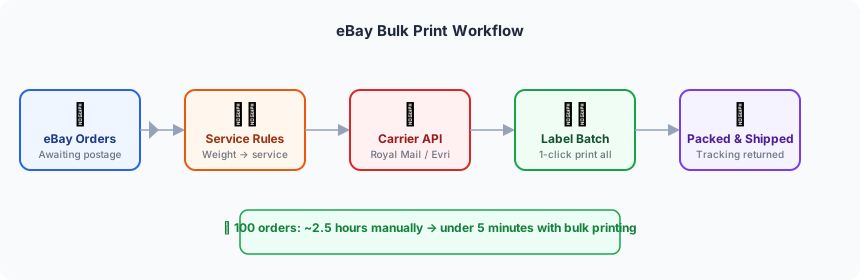 The bulk print workflow: orders in, labels out, tracking returned — 100 orders processed in under 5 minutes.
What eBay Provides Natively
eBay has three built-in label printing options:
1. Individual label printing via Orders page. You click into each order, select "Print postage label," choose a carrier and service, confirm the weight, and print. Fast enough for low volumes. Does not scale.
2. Bulk shipping labels via eBay Seller Hub. In Seller Hub, go to Orders → Awaiting Postage, select multiple orders using the checkboxes, and click Print Postage Labels. eBay will attempt to generate labels for all selected orders simultaneously.
This works reasonably well when:
- All orders are UK domestic
- You use eBay's native Royal Mail or Evri integration
- Orders have consistent weights that eBay can auto-fill from listing data
It breaks when:
- Orders have mixed services (some Tracked 24, some Tracked 48, some Special Delivery)
- Listing weights are missing or inaccurate
- You want to use a carrier not in eBay's native list
- You need labels in a specific format (e.g., ZPL for Zebra thermal printers)
3. CSV export and re-import. You can export your awaiting orders as a CSV, update fields manually (weights, services, tracking references), and re-import. This is powerful but the manual editing step defeats the purpose for most sellers.
The Limitation Nobody Talks About
eBay's bulk label tool still makes you review and confirm each label before it prints. It queues them, but you work through the queue one by one. For 50 orders, that is still 50 clicks.
This is where third-party integrations — and direct API access — make the real difference.
Method 1: Click & Drop Bulk Printing via eBay Integration
Royal Mail's Click & Drop platform has a native eBay connection that bypasses eBay's label printing entirely. Once connected, Click & Drop pulls your awaiting orders from eBay automatically (syncing every 15 minutes), applies your service mapping rules, and queues labels for batch printing.
To set it up:
- Log into clickanddrop.royalmail.com
- Go to Settings → Sales Channels → eBay
- Click Connect and authorise with your eBay account
- Configure your service mapping (weight ranges to Royal Mail services)
- Enable Auto-populate weight from listing if your eBay listings have weights set
Once connected, your morning workflow becomes:
- Open Click & Drop
- Select all new orders (Ctrl+A)
- Click Print Labels
- Collect the multi-page PDF (or print directly to thermal printer)
All labels in one action. No per-order confirmation steps.
For the Click & Drop setup in detail, including API configuration and manifest automation, see our guide to Royal Mail integration for ecommerce.
Method 2: eBay API + Label Generation
For sellers who want maximum control — custom carriers, branded labels, weight override rules, specific label dimensions — the eBay Selling Partner API combined with a shipping carrier API is the right approach.
The workflow:
- Call eBay's Fulfillment API to retrieve orders awaiting shipment
- Apply your service selection logic
- Submit order data to your carrier's API (Royal Mail Click & Drop, Evri, DPD, etc.)
- Retrieve labels as PDFs or ZPL
- Print in batch
- Push tracking numbers back to eBay via the Fulfillment API
Here is a minimal example using Node.js to fetch awaiting orders from eBay:
const response = await fetch(
  'https://api.ebay.com/sell/fulfillment/v1/order?filter=orderfulfillmentstatus:%7BNOT_STARTED%7D',
  {
    headers: {
      'Authorization': `Bearer ${EBAY_ACCESS_TOKEN}`,
      'Content-Type': 'application/json',
    }
  }
);

const { orders } = await response.json();

for (const order of orders) {
  const lineItem = order.lineItems[0];
  const shippingAddress = order.fulfillmentStartInstructions[0].shippingStep.shipTo;

  // Submit to carrier API
  await submitToCarrier({
    reference: order.orderId,
    recipient: {
      name: shippingAddress.fullName,
      line1: shippingAddress.contactAddress.addressLine1,
      postcode: shippingAddress.contactAddress.postalCode,
      country: shippingAddress.contactAddress.countryCode,
    },
    weightGrams: lineItem.weight?.value ?? 500,
  });
}
Returning the tracking number to eBay after shipment:
await fetch(
  `https://api.ebay.com/sell/fulfillment/v1/order/${orderId}/shipping_fulfillment`,
  {
    method: 'POST',
    headers: {
      'Authorization': `Bearer ${EBAY_ACCESS_TOKEN}`,
      'Content-Type': 'application/json',
    },
    body: JSON.stringify({
      lineItems: [{ lineItemId, quantity: 1 }],
      shippedDate: new Date().toISOString(),
      shippingCarrierCode: 'ROYAL_MAIL',
      trackingNumber: 'TT123456789GB',
    })
  }
);
This marks the order as shipped on eBay and triggers the buyer notification automatically.
Method 3: Platform-Based Bulk Printing
If you sell on eBay alongside Amazon, Shopify, or other channels, managing each separately stops making sense quickly. A multichannel platform that connects to all of them and outputs labels through a single print queue is significantly more efficient.
The way this typically works:
- All channels sync orders to the platform in near real-time
- The platform applies service rules per channel, product, or weight
- A single print action generates all labels across all channels
- Tracking numbers are returned to each channel automatically after printing
This approach also solves the problem where eBay's bulk tool works fine but Amazon's does not, forcing you to use two separate processes. One queue, one print, everything ships.
For sellers already running multiple channels, read our guide on managing inventory across multiple channels — stock conflicts during high-volume fulfilment are the most common operational problem that appears alongside the label printing challenge.
Thermal Printers vs. Desktop Printing
For genuine bulk printing, a dedicated thermal label printer is worth the investment.
| Thermal Printer | Desktop Inkjet | |
|---|---|---|
| Speed | ~3 seconds per label | ~15 seconds per label |
| Cost per label | Label stock only (~£0.01) | Ink + paper (~£0.05–0.15) |
| Label format | 100×150mm direct | Requires PDF page setup |
| Reliability | Near zero jams | Paper jam risk at volume |
| Recommended models | Zebra ZD421, Rollo, Dymo 4XL | Any A4 with custom page size |
eBay's native labels output as A4 PDFs with postage stamps (not suitable for thermal). Click & Drop and most carrier APIs output labels as 100×150mm PDFs or ZPL (for Zebra printers) — use this format if you have a thermal printer.
Setting Up for Tomorrow Morning
A bulk printing workflow that is working correctly should look like this:
- You arrive at the packing station
- Your platform has already synced overnight orders from eBay
- Labels are queued and ready — services pre-assigned, weights pre-filled
- You click print once, collect the label stack from the printer
- Pack and apply labels — no computer interaction needed between parcels
- Manifest submits automatically before collection
The part most sellers skip is step 3: making sure weights are correct. eBay listings have a weight field in the item specifics. Fill it for every active listing. Without it, every automation defaults to a manual weight confirmation, which breaks the batch flow.
The One Setup Task That Unlocks Everything
Before any of these methods will work reliably at scale, your eBay listings need accurate weights and dimensions. Go through your top 20 selling SKUs and ensure each has:
- Weight in grams or kilograms (not "light" or blank)
- Package dimensions if you offer large letter or international services
- A single primary postage service selected (not "seller's choice")
This is the unglamorous work. But it is what separates sellers who can genuinely automate their fulfilment from those who still click through orders one at a time.
Once listings are clean, any of the methods above — Click & Drop, direct API, or a multichannel platform — will run reliably every day without intervention. Learn how to extend this across every channel you sell on in our guide to multi-channel printing.
Ready to simplify your multichannel operations?
Start your 14-day free trial with Adlixor Presence — no credit card required.